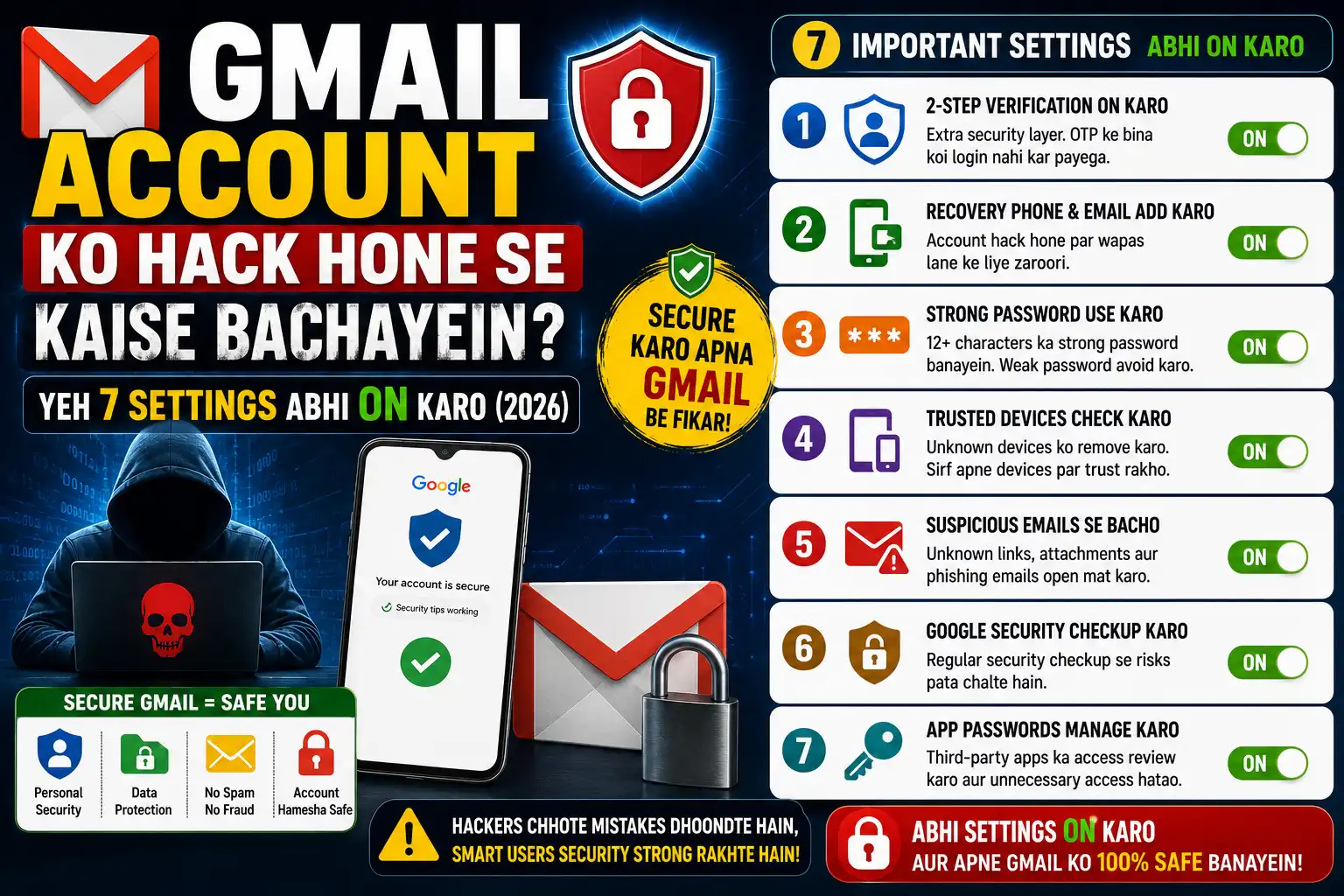
Gmail Account Ko Hack Hone Se Kaise Bachayein — Yeh 7 Settings Abhi ON Karo (2026)
Gmail account ko hack hone se kaise bachayein? Yeh 7 settings ON karo aur account almost unhackable ho jaayega — step by step guide.
Last Updated: 18 May 2026 | By Sanjeev Kumar | Category: Technology
Hamare reader Rahul Mishra — jo Allahabad mein ek private school mein teacher hain — unhone message kiya: “Bhai, mera Gmail account hack ho gaya tha pichle saal. Bahut mushkil se wapas mila. Ab main chahta hoon ki dobara aisa na ho. Kya koi solid tarika hai account protect karne ka?” Yeh problem sirf Rahul bhai ki nahi — India mein lakhs log daily Gmail hack hone ki khabar sunte hain. Aaj woh 7 settings batata hoon jo Gmail account ko almost unhackable bana deti hain.
Pehle Samjho — Gmail Hack Kaise Hota Hai
Gmail hack hone ke mainly teen reasons hote hain. Pehla — weak ya repeated password jo doosri site pe bhi use kiya ho. Doosra — phishing links pe click karna jo Gmail jaisi dikhti hain lekin fake hoti hain. Teesra — 2FA (Two Factor Authentication) na hona — agar password pata chal jaaye toh bhi account safe nahi. Yeh teeno problems fix karo toh Gmail hack hona almost impossible ho jaata hai.
Yeh 7 Settings Karo — Gmail Account Rock Solid Safe Ho Jaayega
1. 2-Step Verification ON Karo — Sabse Zaroori
Yeh ek setting sab se zyada important hai. Gmail settings mein jaao — myaccount.google.com pe jaao — Security section mein “2-Step Verification” dhundho aur ON karo. Iske baad jab bhi koi new device pe login kare toh phone pe OTP aayega — bina OTP ke koi login nahi kar sakta, chahe password pata ho. Authenticator app (Google Authenticator ya Authy) use karna SMS se better hai — SMS intercept ho sakta hai.
2. Strong Unique Password Set Karo
Agar Gmail ka password aapke naam, date of birth, “123456” ya kisi doosri site pe bhi use kiya hua hai — turant change karo. Strong password mein hona chahiye — minimum 12 characters, uppercase aur lowercase mix, numbers aur special characters. Example: “Help@Post#2026” — yeh strong hai. Google Password Manager free mein available hai Chrome mein — isko use karo passwords generate aur save karne ke liye, yaad rakhne ki zaroorat nahi.
3. Third Party Apps Ka Access Check Karo
myaccount.google.com pe jaao. “Security” mein “Third-party apps with account access” section dekho. Kaafi apps jo aapne kabhi use ki thi — aaj bhi Gmail ka access rakhti hain. Jo apps aap use nahi karte unka access “Remove Access” karo. Yeh ek common entry point hai hackers ka — forgotten apps ke through.
4. Recovery Email Aur Phone Number Updated Rakho
Gmail settings mein recovery email aur recovery phone number updated hone chahiye. Agar account hack ho jaaye ya password bhool jaao — yahi recovery options kaam aate hain. myaccount.google.com pe “Personal Info” mein check karo ki recovery email aur phone number current hain ya nahi. Purana number ya email hoga toh account wapas milna mushkil hoga.
5. Active Sessions Check Karo — Koi Aur Toh Login Nahi
Gmail open karo. Bilkul neeche scroll karo — “Last account activity” section milega. “Details” pe click karo — yahan saari active sessions dikhti hain — kaun se devices pe, kahan se, kab login hua. Koi unknown device ya location dikhe toh “Sign out all other web sessions” pe click karo aur turant password change karo. Yeh check mahine mein ek baar karna chahiye.
6. Google Security Checkup Karo — Free Tool Hai
myaccount.google.com pe jaao aur “Security Checkup” run karo. Google khud aapko batayega ki kya kya weak points hain — weak passwords, old recovery info, suspicious activity. Yeh checkup 5 minute ka hai aur sabse comprehensive security review hai. Saal mein ek baar zaroor karo.
7. Phishing Emails Pehchanna Seekho
Zyada tar hacking phishing se hoti hai — ek fake email aati hai jo Gmail ya bank ki taraf se lagti hai. Link pe click karo, password daalo — aur account gaya. Pehchanne ke tarike — sender ka email address carefully dekho (google.com ki jagah g00gle.com ya gmail.support hota hai), urgent language hoti hai “Abhi click karo warna account delete hoga”, aur link hover karo — actual URL alag hoti hai. Agar doubt ho toh click mat karo — seedha browser mein gmail.com type karo.
Bonus — Gmail Pe Kya Store Nahi Karna Chahiye
- Bank account passwords ya PINs — email mein kabhi nahi
- Aadhaar, PAN card ki clear photos as attachment — sensitive data hai
- UPI PIN ya net banking password — bilkul nahi
“Mera account hack hone ke baad maine 2FA on kiya, password badla aur third party apps remove kiye. 1 saal ho gaya — ab koi problem nahi. 2FA on karna game changer tha.” — Rahul Mishra, Allahabad (reader feedback, naam permission se)
Yeh Bhi Padho
- UPI Fraud Se Kaise Bachen — 6 Naye Scam Tricks 2026
- Phone Slow Ho Gaya — 7 Settings Se Turant Fast Karo
- WhatsApp Notifications Band Kaise Kare
Frequently Asked Questions
Kya 2FA on karne ke baad login mushkil ho jaata hai?
Thoda extra step lagta hai — OTP enter karna. Lekin “trusted devices” mein apna phone add kar sakte ho jahan 2FA baar baar nahi maangega. Security ke liye yeh ek small inconvenience worth it hai.
Gmail hack hone pe turant kya karna chahiye?
accounts.google.com/signin/recovery pe jaao aur account recovery start karo. Recovery phone ya email se verify karo. Account wapas milne ke baad turant password change karo, 2FA on karo aur active sessions check karo.
Kya Google Password Manager safe hai?
Haan — Google ka Password Manager encrypted hai aur Google account se protected hai. 2FA on ho toh yeh bahut safe hai. Ek jagah sab passwords — convenient bhi aur secure bhi.
Kya free Gmail account pe yeh features milte hain?
Haan — 2FA, Security Checkup, Password Manager, active sessions — yeh sab free Gmail mein available hain. Koi paid plan ki zaroorat nahi.
Yeh article general informational purpose ke liye hai. Google apni security features regularly update karta hai — latest settings ke liye myaccount.google.com check karo.